Farming Simulator 25 mods
78,272 results- 15 per page
- 30 per page
- 45 per page
- 60 per page
-
See more per page
Bigger pages, fewer clicks - and no ads anywhere.
Go Pro
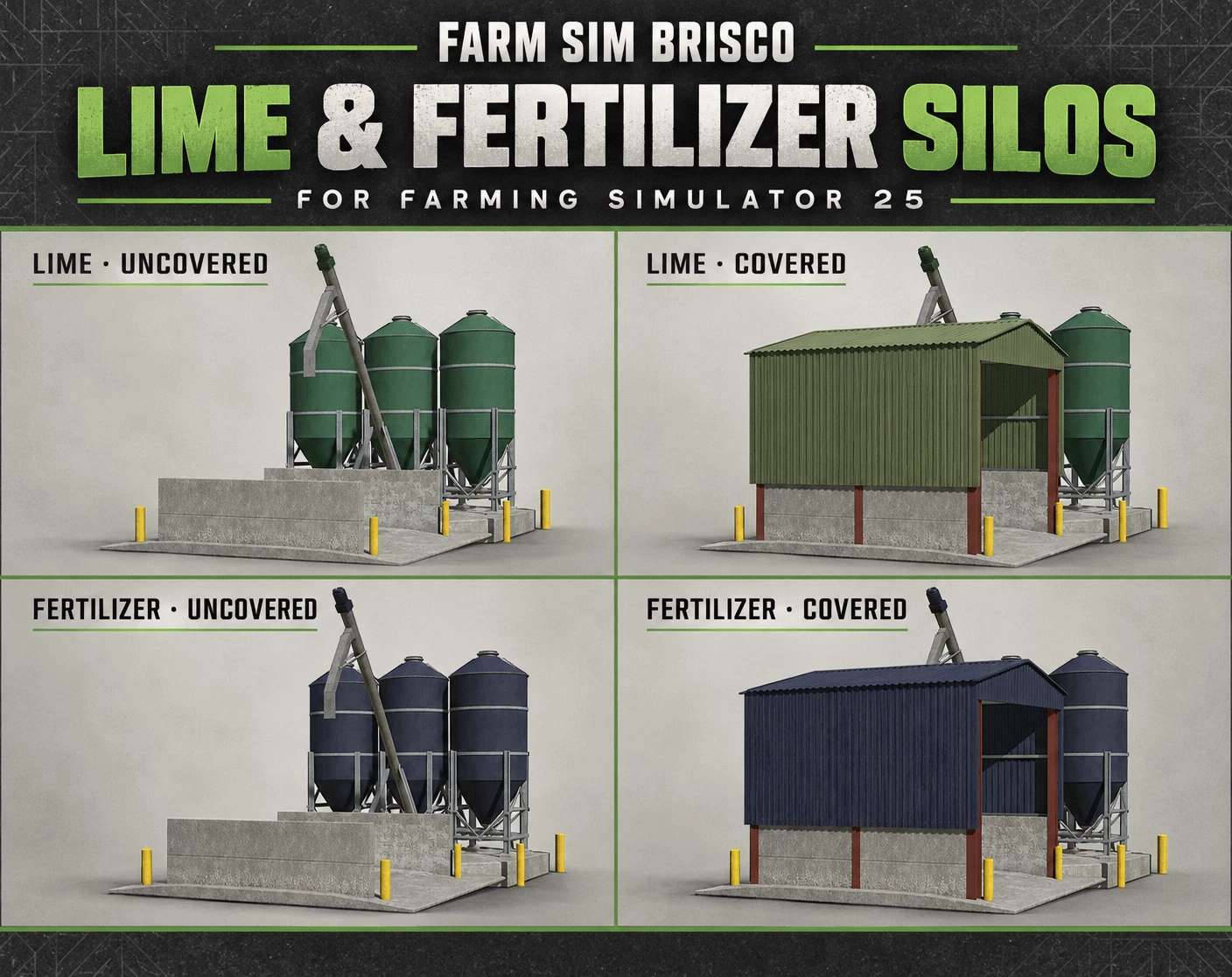
Lime & Fertilizer Silos v1.0
Lime & Fertilizer Silos v1.0 I originally made these lime and fertilizer silos for Saxlingham 4x, but I thought it would be nice to share them early so you can enjoy them on your own farms while work on the map continues. The pack includes covered and uncovered versions of both the lime and fertilizer silos for Farming Simulator 25. A little something from the upcoming map for you to enjoy ahead of its release. Hope you like them! Author: FarmSimBrisco Report bugs in the comments and help modders improve this mod. Always check the comments, you can find a solution. DOWNLOAD MOD
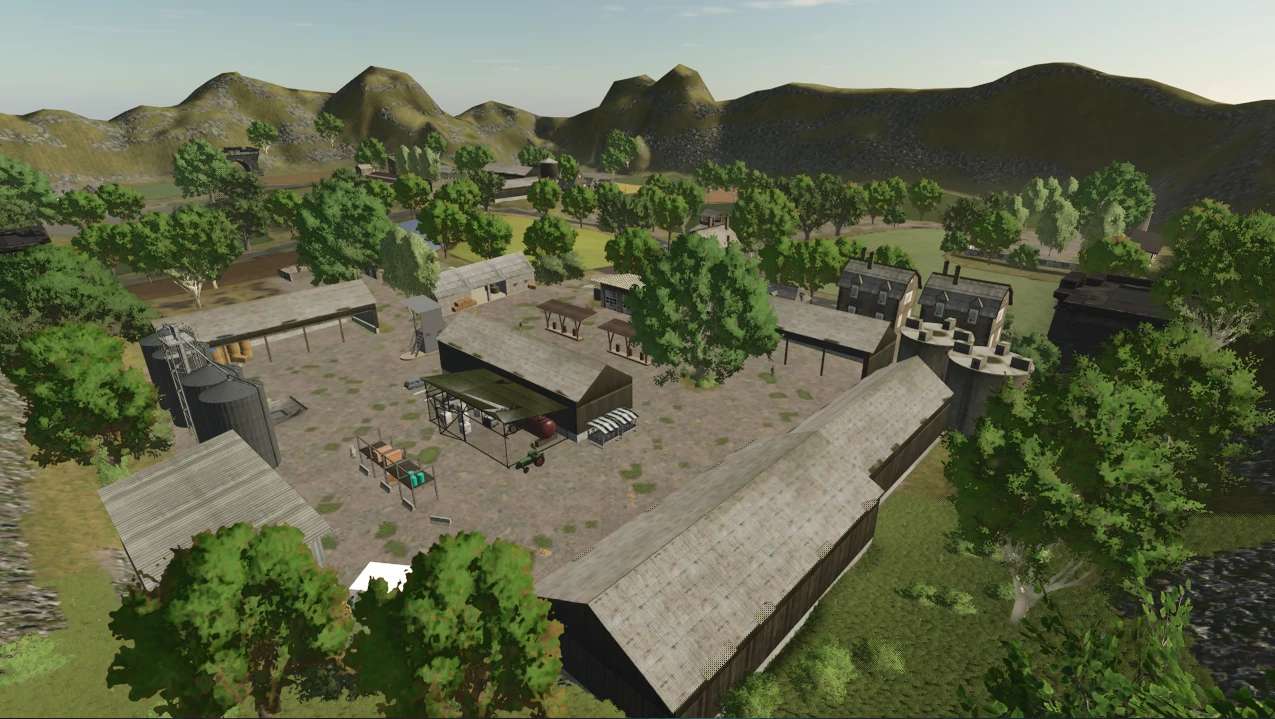
Le Petit Terroir v1.0
Le Petit Terroir v1.0 Map: Solo/Duo 17 Champs Ferme Principale + Zone Placable Libre Cultures Multifruit: Millet, Épeautre, Lentilles, Lin, Seigle, Triticale, Moutarde, Sarrasin, Lavande, Pavot, Luzerne. Author: 3D Creative Report bugs in the comments and help modders improve this mod. Always check the comments, you can find a solution. DOWNLOAD MOD
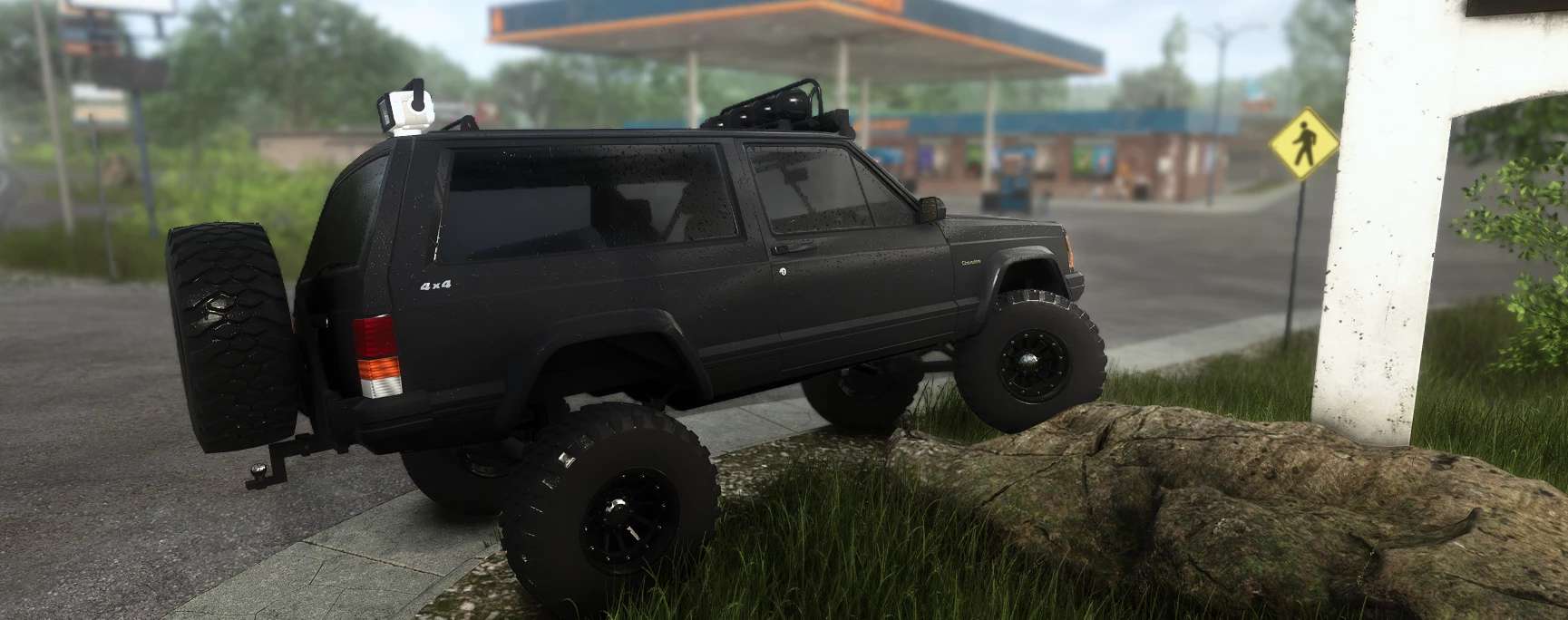
1992 Jeep Cherokee XJ v1.0
1992 Jeep Cherokee XJ v1.0 This is my first mod , i hope you enjoy. Please follow and support for future projects! 1992 Jeep Cherokee XJ – by FJMods A fully customizable 2-door XJ built for trail use, powered by a straight-piped 4.0L inline-six. Features Engine sound of a 4.0 I6 with no muffler. Solid front and rear axles that really articulate, with long-travel suspension, front control arms and a track bar Front coilovers and rear leaf springs, plus brake rotors and drums that turn with the wheels Stock headlights, plus optional halo rings in 8 colors Rebuilt early-90s dash with working gauges that light up at night: speedo, tach, oil, volts, temp and fuel Customization Paint: factory colors, metallics Interior: Tan, Gray or Agate, plus window tint from none to 5x limo Wheels: Stock wheels, 31″ all-terrains, or 33″/35″ MPT 80s on steel or beadlock wheels 12-spoke black wheels in 33″ or 35″, from 12.50 to 15.50 wide Wheel spacers: none, 1.5″, 2″ or 3″ Roof: roof rack, round and/or LED light bars, roll cage, CB antenna or a GoLight remote spotlight Rear: swing-arm spare tire carrier with a matching spare, trailer hitch with 7-pin plug, and FJMods rear window sticker GoLight controls (rebindable) Numpad 0: on/off Numpad 4/6: pan Numpad 8/2: tilt Numpad 5: center Author: FJMods Report bugs in the comments and help modders improve this mod. Always check the comments, you can find a solution. DOWNLOAD MOD


Inventory Backpack V1.0.0.1
🎒 Inventory BackPack — Everything you need is always with you! Tired of carrying items one at a time? Constantly going back for things you forgot? Using an entire vehicle just for a few small items? Now you have your own backpack in Farming Simulator 25! Inventory BackPack adds a fully functional personal inventory to the game, allowing you to carry several items at once and use them wherever they are really needed. No more unnecessary running around or endless trips for small items. Simply gather everything you need, put it in your backpack and get on with your work! 🎒 What does Inventory BackPack offer? – 15 item slots. Carry tools, canisters, small boxes, spare parts, consumables and other compatible portable objects. – Personal inventory. Each player has their own backpack with their own contents. – Full multiplayer support. Play together with your friends, including on dedicated servers. – Item saving. The backpack contents are saved separately for each player and each savegame. – Convenient controls. Select items using the mouse or keyboard and take them out whenever you need them. – Clear interface. Icons, names and configurations make it easy to quickly find the item you need. – Grouping of identical items. Keep your inventory organized. – Compatibility with other mods. The backpack can store suitable portable items added by third-party modifications. 🌾 One backpack — countless possibilities! Working far from the farm? Take the necessary supplies with you. Servicing machinery? Prepare a set of tools and consumables. Using mods with additional items, such as Advanced Damage System? Carrying them is now much more convenient. Or do you simply want to collect several small items without running back for each one individually? The backpack will come in handy in practically any situation! 🎮 Simple controls I — open or close the backpack. Y — put an item in the backpack. Mouse / arrow keys — select an item. Enter — take out the selected item. Esc — close the menu. 🚜 Convenience without sacrificing realism Inventory BackPack does not turn the player into a mobile warehouse and does not let you carry tractors in your pocket. It is designed for ordinary portable items that you could reasonably take with you on the way. No virtual deliveries or cargo teleportation — just you, your backpack and the things you decided to take with you! 🎒 Less running around. More possibilities. More enjoyment of the game! Inventory BackPack — the small feature Farming Simulator 25 was missing! Languages: Russian / English The mod is still being developed! Found a bug or thought of an interesting feature? Share your suggestions and help make Inventory BackPack even better! To start download click the filename. To open archive files use one of these programs: WinRAR, 7-Zip, WinZip. Some mod archives may need to be extracted before the mods will work.

Dubya Cattle Co. Cab HUD V2.5
A full in-cab dashboard panel that puts everything you need while driving in one clean, movable, resizable window. Speed, engine, fuel, implements, Precision Farming data, a live mini map with field layers, and a 5-day weather forecast, all without opening a single menu. The panel shows whenever you’re in a vehicle and hides when you get out. It’s client-side, so it works in single player and on multiplayer and dedicated servers, and each player sets it up their own way. What the panel shows Header Dubya Cattle Co. logo In-game day of the month and the time of day Driving and engine Speed (MPH) and engine RPM, with bar gauges Direction (Forward / Neutral / Reverse), current gear, and cruise control speed Diesel (or electric / methane), DEF level, coolant temperature in °F, and damage Damage works like the game’s repair bar: it shows the worst damage across the tractor and everything attached, labeled “DMG IMPL” when an implement is the worst one Implements (like the game’s control group HUD) Every attached implement, including ones hooked to other implements, listed with front or rear position The selected implement is highlighted Each implement shows whether it’s raised or lowered, folded or open (for implements that fold), and turned on Acres worked and left Shows the field you’re working, its size in acres, acres worked, acres left, and percent done, with a progress bar In single player or when you host, it counts the exact area your implements process, so overlap isn’t counted twice On a dedicated server it estimates from working width and distance, marked EST Each field and implement set gets its own counter, so a new job on the same field starts at zero Fill tanks Every tank across the tractor and implements, up to 4: for example seed and fertilizer on a seeder, or a front tank Each tank shows its fill type, amount, capacity, and percentage with its own bar; empty tanks are named after what they hold Bars turn amber at 20% and red at 10% Lights and status Indicators for turn signals, headlights, work lights, beacon, AI helper, and engine on/off Enhanced Vehicle support (optional) If you run the Enhanced Vehicle mod, an extra section shows: Front and rear diff locks, 2WD / 4WD / FWD mode, and park brake Steering snap angle, track number, work width, and headland distance Odometer and trip meter Precision Farming support (optional) If Precision Farming is installed, the panel shows: The soil type under your tractor Sprayers and spreaders: pH or nitrogen, current and target value, application rate, and auto / manual mode (amber means you’re still under target) Seeders: seed rate, auto / manual mode, and tramline width Combines: yield in t/ha and the percentage of yield potential Mini map Three views (Right Ctrl + Y): 2D north up, 2D heading up (the map turns with you and a red N shows where north is), and a live 3D chase view from above and behind the tractor North-up map of your farm, using your map’s own overview image, with an arrow showing your heading 4 zoom levels: 300 m, 600 m, 1.2 km, 2.4 km across Field layers, using the same colors as the game’s map menu, with a legend: Field Work: plowed, cultivated, stubble tillage, seedbed Crops: growing, ready to harvest, harvested, withered Fertilized: fertilizer levels (replaced by PF Nitrogen when Precision Farming is installed) Needs Work: needs lime, plowing, or rolling Weeds: weeds and stones Precision Farming: soil types, pH, nitrogen, yield, and seed rate Layers refresh every 15 seconds, so fresh work shows up as you go 5 map styles: Standard, Satellite, Topo (with grid), Dark, and Night Weather forecast Today plus the next 4 days Weather icon for each day (the worst weather expected during working hours) High and low temperatures in your game’s °F or °C setting Rain, storm, hail, and snow days highlighted in amber Footer Farmland number, compass heading in degrees, and your farm’s money Customization Modern layout (default): rounded cards, an arc-style RPM gauge around the speed readout, slim pill gauges and pill-shaped buttons. The original Classic layout is one key press away. Move the panel to preset screen positions, or drag it anywhere with the mouse Resize it with hotkeys, or drag the bottom-right corner 10 color themes plus a custom theme you can set in the settings file Adjustable background opacity Turn each section on or off: Enhanced Vehicle, Precision Farming, map, forecast Solo mode hides the game’s own HUD and keeps only this panel, for a clean cinematic cab view. Enhanced Vehicle’s guide lines and track numbers stay visible. The game HUD comes back when you get out of the vehicle. All settings save automatically to modSettings/FS25_DubyaHUD.xml Controls Every key uses Right Ctrl, and all of them can be changed in Options → Controls under “Dubya HUD”. Keys Action Right Ctrl + H Show / hide the panel Right Ctrl + J Move to next screen position Right Ctrl + K Smaller Right Ctrl + L Bigger Right Ctrl + C Next color theme Right Ctrl + B Background opacity Right Ctrl + O Solo mode (hide game HUD) Right Ctrl + E Show / hide Enhanced Vehicle info Right Ctrl + P Show / hide Precision Farming info Right Ctrl + F Show / hide weather forecast Right Ctrl + M Show / hide mini map Right Ctrl + N Map zoom Right Ctrl + G Map layer Right Ctrl + V Map style Right Ctrl + U Panel layout (modern / classic) Right Ctrl + Y Map view (2D north up / 2D heading up / 3D) Mouse: when the cursor is showing, drag the panel’s header to move it and its bottom-right corner to resize it. Installation Put FS25_DubyaHUD.zip in your mods folder (Documents\My Games\FarmingSimulator2025\mods). Don’t unzip it, and keep the file name exactly as is. Enable the mod when you load or create your save. For a dedicated server, upload the same zip to the server’s mods folder and enable it there. Get in any vehicle. The panel appears automatically. Compatibility Works on its own. Enhanced Vehicle and Precision Farming are optional; their sections only appear when those mods are active. Other mods’ HUDs, such as AutoDrive or Courseplay, aren’t hidden by solo mode. If something isn’t working, check log.txt for lines starting with “DubyaHUD”. Now measured on a 2.5 m grid using each work area’s real position: only ground actually passed over counts, and each spot counts once Overlaps, headland turns and driving back over cut ground no longer add acres Combine straw/chopper areas and ridge markers are left out, so the header isn’t counted twice Same accuracy in single player, hosting and on a dedicated server (no more EST estimate) Saved progress uses the new grid; totals saved by older versions start fresh once v2.4.0.0 Added Needle speedometer (modern layout): switch with Right Ctrl + I or by clicking the gauge Dial scaled to the vehicle’s top speed, rounded up to the next 10 mph Speed ring lights up as you go faster, red near top speed Cruise speed marker and a digital readout under the needle Choice is saved; the digital gauge with the RPM ring is still the default Changed Implement states now read LOWERED / RAISED and FOLDED / UNFOLDED (pills, classic list and hitch buttons) More space between implement names and their state pills v2.3.0.0 Added Month name in the header next to the day (for example OCTOBER DAY 9 OF 28), using the game’s own month names Clickable at all times: the HUD is clickable whenever you’re in a vehicle, with no key to press first The camera only holds still while the mouse is over the HUD The toolbar shows when the mouse is over the HUD; map buttons show when it’s over the map Right Ctrl + X or DONE pauses clicking until you next get in a vehicle ALWAYS button on the toolbar turns it off (back to Right Ctrl + X only) Removed 3D map view, which could crash the game when you switched to it; a saved 3D setting falls back to 2D Added – Auto map layer: when you’re on a field, the map switches to the layer for the job – Plow, cultivator, disc, subsoiler, roller, mulcher, stone picker or seeder: Field Work – Fertilizer, liquid fertilizer, slurry, manure or digestate: PF Nitrogen (Fertilized without Precision Farming) – Lime: PF pH (Needs Work without Precision Farming) – Herbicide or weeder: Weeds – Combine: PF Yield (Crops without Precision Farming); mower or baler: Crops – Sprayers and spreaders are read by what’s in the tank, what was last in it, or what a front tank is feeding them – A layer you pick yourself stays until the job changes or you enter another field – AUTO map button in interact mode turns auto layer on or off Removed – Coverage trail (drawing, saving and its map button); older saved trail data is ignored Added – GPS route uses the game’s own GPS (Steering Assist), so GPS lines work without Enhanced Vehicle – Driving onto a field switches the vehicle to Steering Assist; the game detects the field from the ground, builds its course and shows its lines in the world – Your normal AI mode comes back about 8 seconds after leaving the field, or when you get out or switch vehicles – HUD map shows the game’s lines with the current line highlighted; the field card shows LINE x / y – GPS modes on the GPS toolbar button: AUTO, GAME, EV, OFF – Saved field work: worked acres are saved per savegame (and per server in multiplayer), every 30 seconds, on game save and on quit – Finished fields worked again on a later day start over automatically for the next season – RESET button on the field card in interact mode (click twice to confirm) Added – Interact mode (Right Ctrl + X): mouse cursor, camera stops following the mouse, clickable HUD – Lights, work lights, beacon, turn signals and engine – Select an implement; raise/lower, fold/unfold and turn it on from its pills – Enhanced Vehicle diff locks, 4WD, park brake, snap, and odometer/trip – Map buttons for view, layer, style, zoom, size, field outlines and route; mouse wheel zooms the map – Toolbar for theme, opacity, layout, solo mode, move, size, and showing EV, PF, forecast, map and GPS – Drag the header to move, drag the corner to resize – Leave with Right Ctrl + X, DONE, or by getting out of the vehicle – Automatic GPS route when you enter a field: follows the field’s longest straight edge, first pass half a work width inside it – Turns on Enhanced Vehicle’s track lines when it’s installed; the HUD map follows changes made in Enhanced Vehicle – Field card shows the route heading and pass number – Right Ctrl + R recalculates the route – Map upgrades – Field outlines and field numbers, with the field you’re in highlighted – Three map sizes (Right Ctrl + T) – Heading-up view puts your arrow lower so you see more ahead – Outlines are only drawn for fields in view Changed – All earlier keybinds kept Changed – Imperial units everywhere, whatever the game’s unit setting – Liquids in gallons; grain in bushels (USDA standard bushel weights); everything else in pounds – Speed and cruise in mph; coolant and forecast in °F – Work width, headland, tramlines and map scale in feet; odometer and trip in miles – Precision Farming rates in lb/ac or gal/ac; seed rate in lb/ac or seeds/ac; nitrogen in lb/ac – Combine yield in bu/ac for grain, lb/ac for other crops To start download click the filename. To open archive files use one of these programs: WinRAR, 7-Zip, WinZip. Some mod archives may need to be extracted before the mods will work.

Sulky Master V Beta 2
Perfect seeder for your parties working width:3.0m capacity:600l switch to colors fs25 Leminicaseih Jagamaschin To start download click the filename. To open archive files use one of these programs: WinRAR, 7-Zip, WinZip. Some mod archives may need to be extracted before the mods will work.
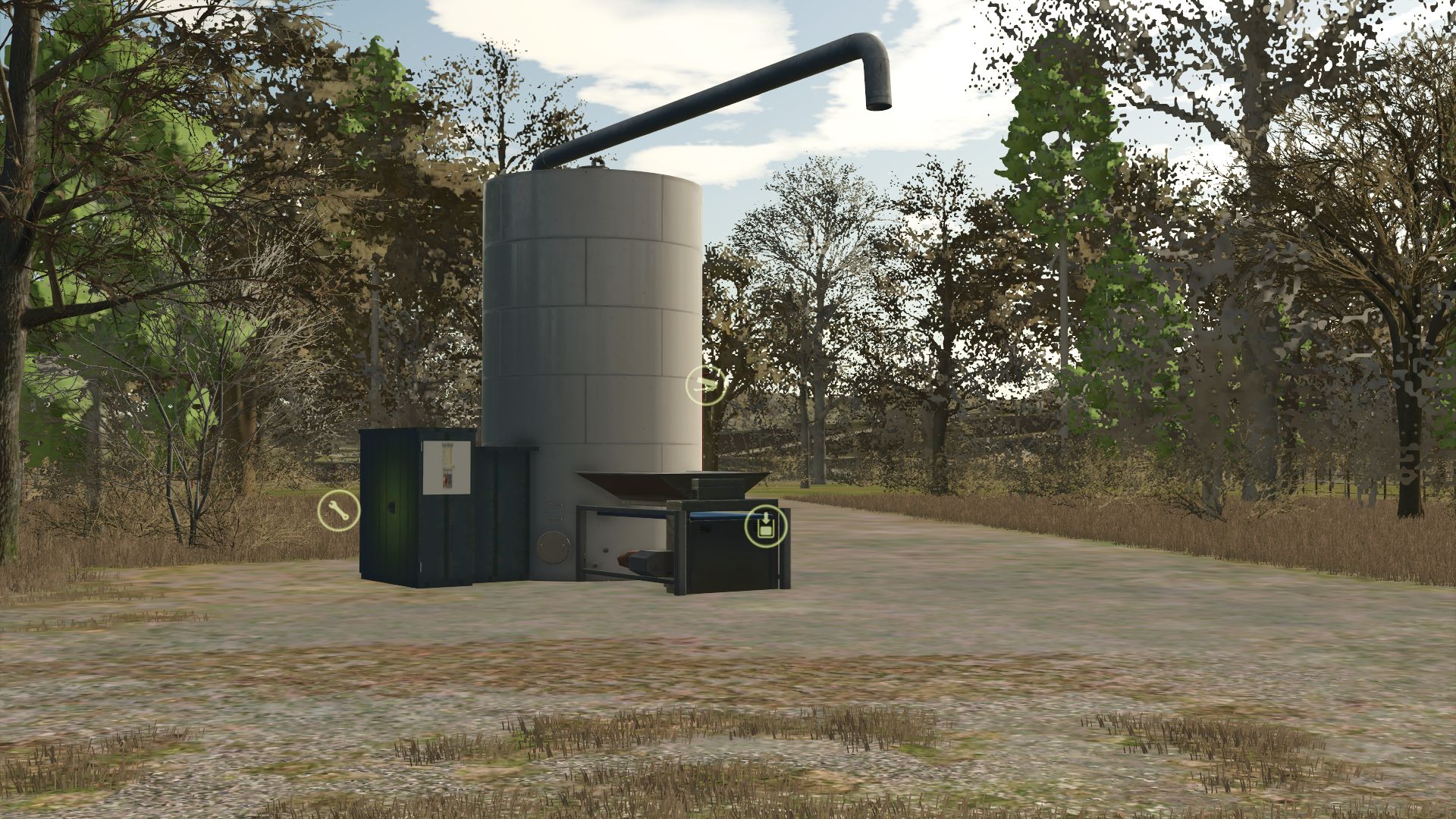
Production of feed for pigs FS25
Pork food production: Machine to transform the crops into feed for the pigs of your farm. Category: Production - Factories Price: € 25,000
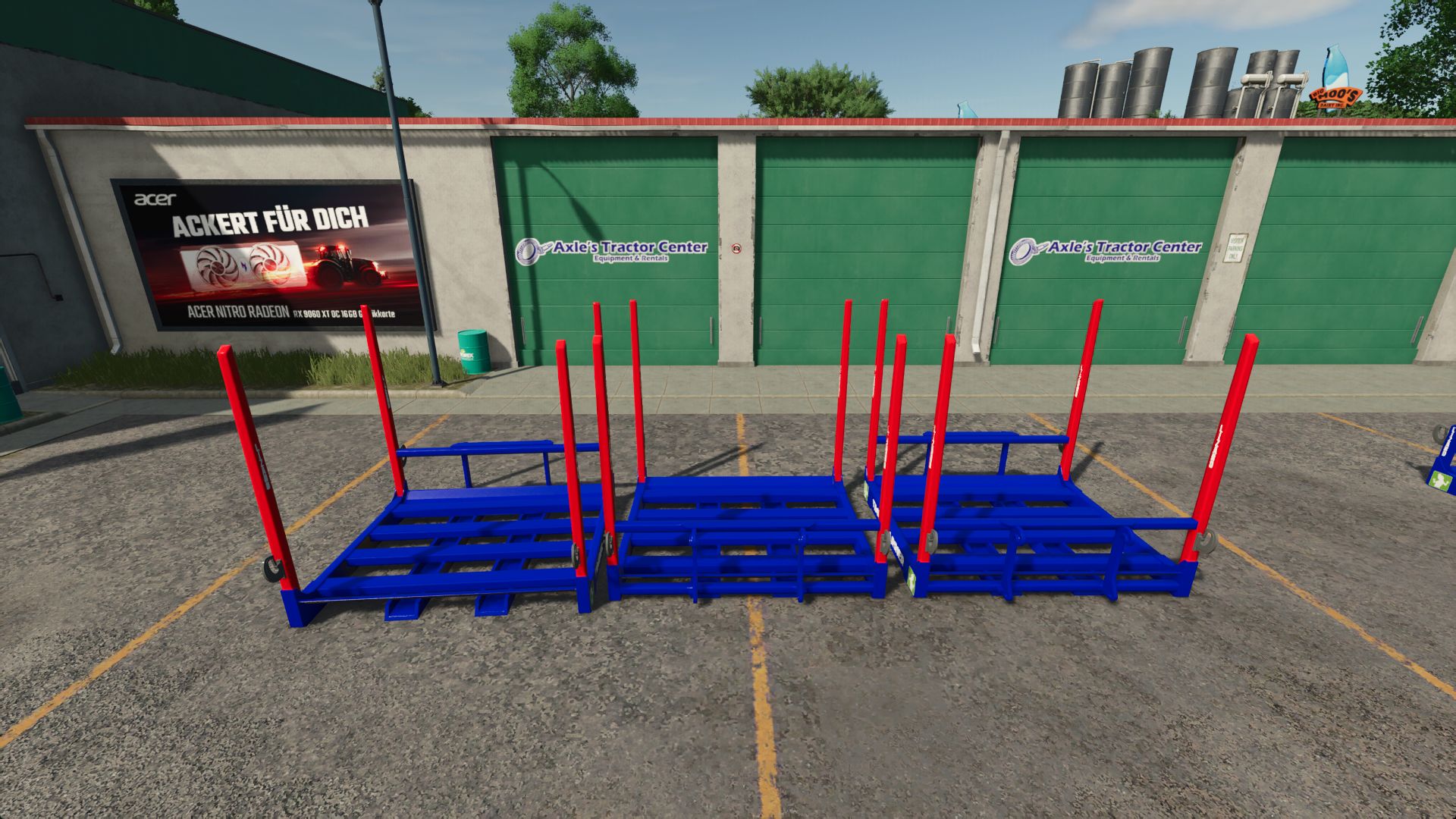
Timber Carrier FS25
I converted the Lizard Timber Carrier into the LS25 and immediately added an adjustment. Both carriers can be lifted with the crane. The Reine Carrier is for example for attachments of excavators or other devices. Can be attached using a wheel loader, hook and three-point hitch. Fixed tension strap and trigger errors in both Carrier variants. Corrected material assignments and color configuration. Cleaned up texture paths and integrated the external texture. Adjusted the shop category for LS25.
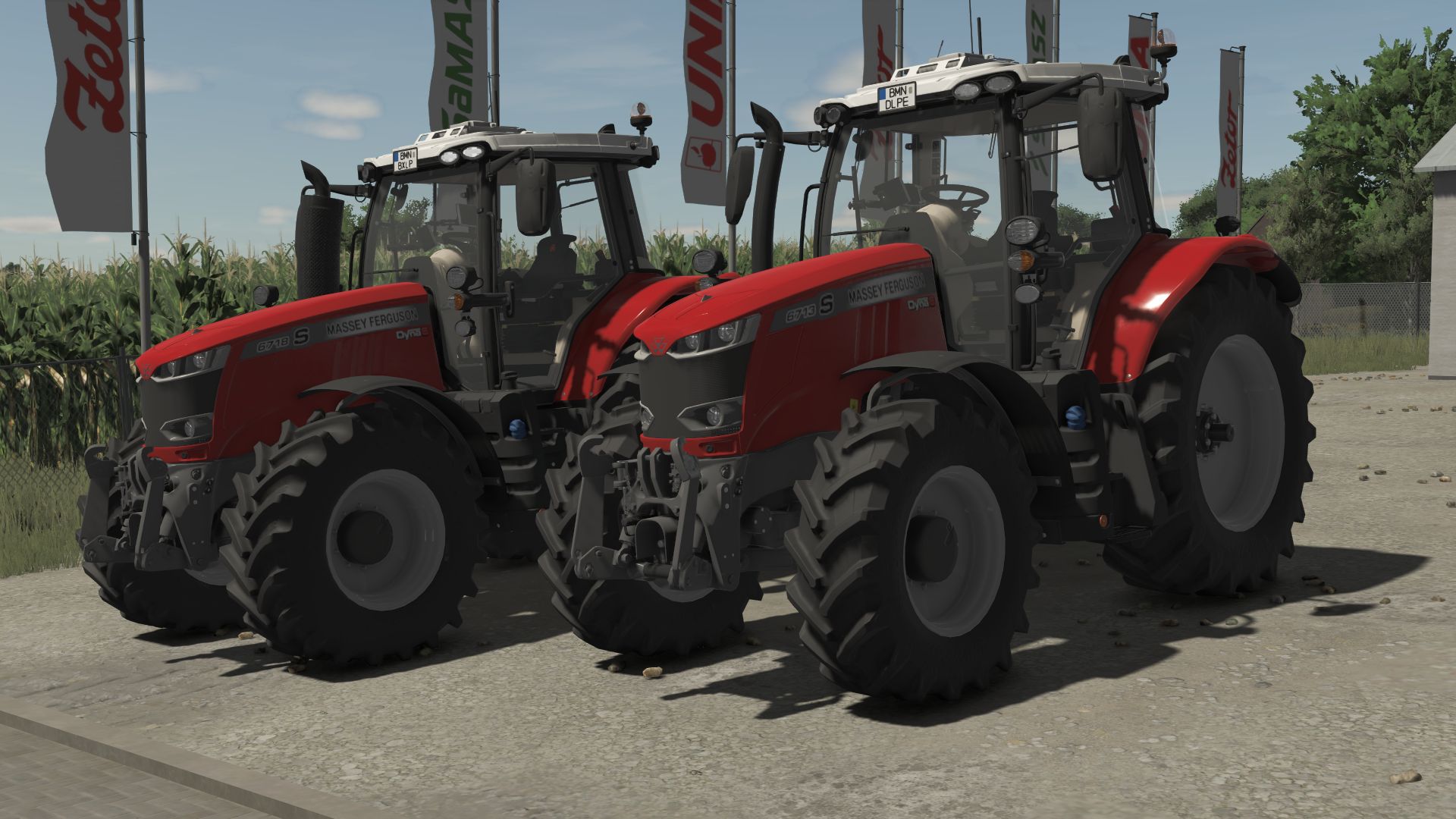
Massey Ferguson 6700S FS25
Massey Ferguson 6700S Price: 122.000$ Power: 150HP Engine configuration: - MF 6713 S (150 hp) - MF 6714 S (160 hp) - MF 6715 S (175 hp) - MF 6716 S (185 hp) - MF 6718 S (200 hp) - Rim Color Configurations - Warning Signs - Terminal - Exhaust - Increased modDesc version - Color corrected - Minor bug fixes - Increased modDesc version
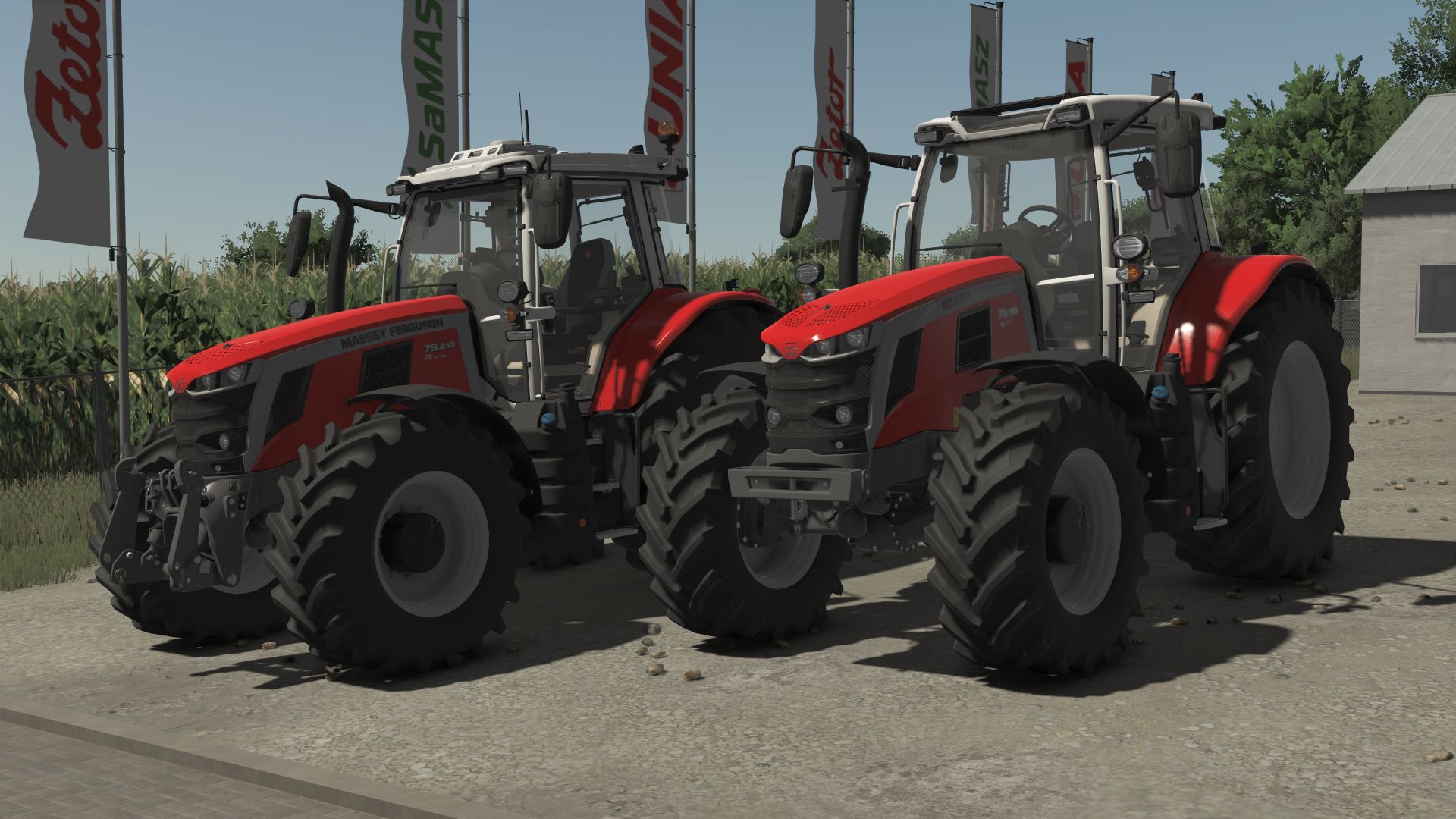
Massey Ferguson 7S FS25
MF 7S: Price: $125,500 Power: 155 HP Engine Configurations: - MF 7S.155 (155 HP) - MF 7S.165 (165 HP) - MF 7S.180 (180 HP) - MF 7S.190 (190 HP) - MF 7S.210 (210 HP) Configurations: - Rim Color - Beacon Lights - Speed Decal - Front Mounting - Frontloader - Increased modDesc version - Color corrected
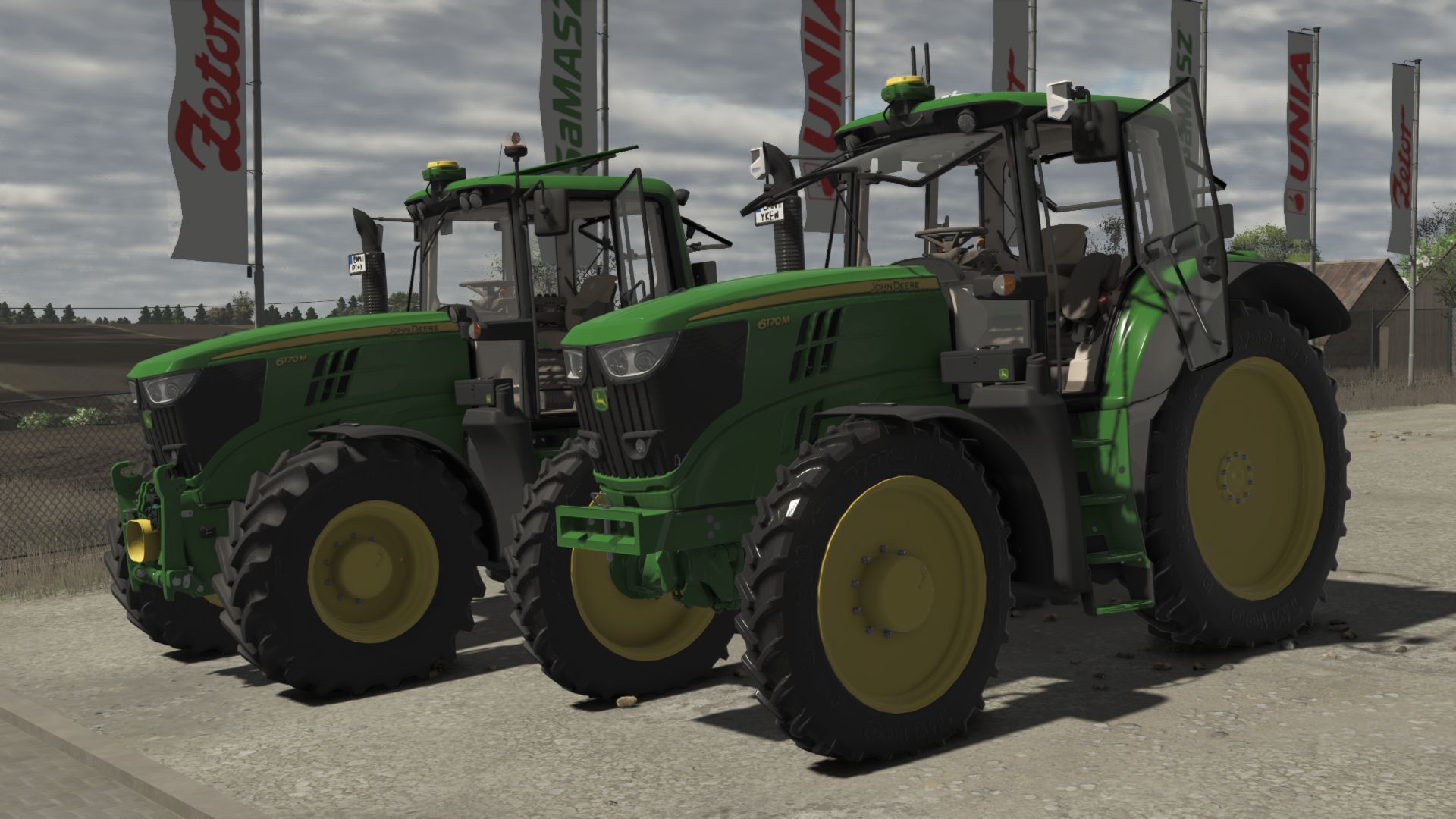
John Deere 6170M FS25
JOHN DEERE 6170M Model: 6170M Year of production: 2011-2016 Transmissions: PowerQuad-AutoQuad Engine: John Deere PowerTechTM PVS 6 cylinder Max speed: 40 km/h Price: 92500 $ Power: 175HP - Custom sounds - Worklights configuration - Front window configuration - StarFire configuration - SCV configuration - Beacons configuration - Cabin controls configuration - Roof configuration - Interior configuration - Fenders configuration - Wheel configuration - Frontloader configuration - Front attacher configuration - Precision Farming configuration **NO ERRORS** - Increased modDesc version - Color corrected - Increased modDesc version - Increased modDesc version - Minor bug fixes
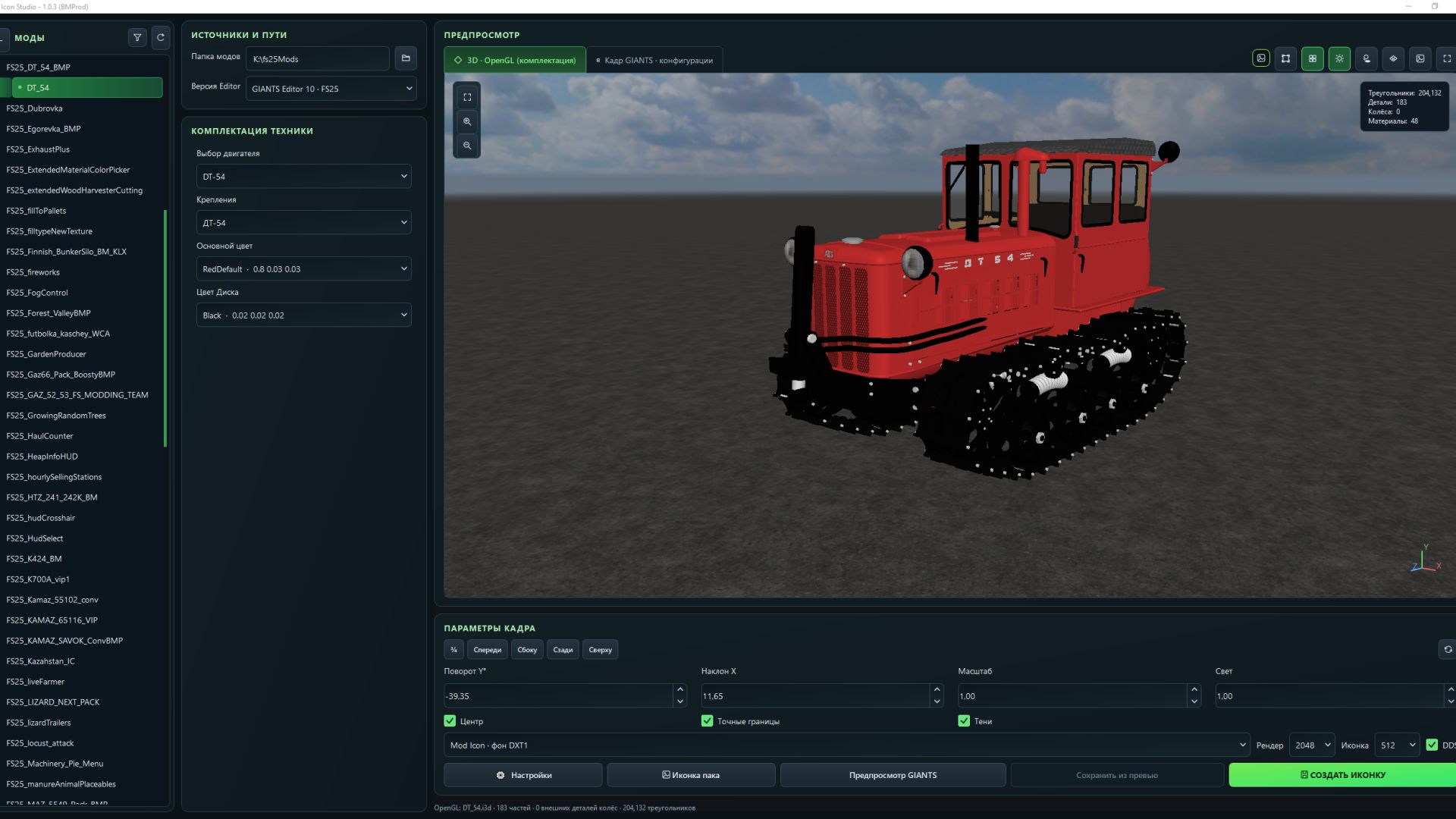
FS Icon Studio FS25
FS Icon Studio — a Windows utility that combines vehicle selection, equipment configuration, 3D preview and ready-to-use icon creation in one window. It helps prepare images for the in-game store and a mod cover: choose the required wheels and color, set the camera angle, check the result and save it as PNG or DDS. Features - FS22 and FS25 in one application. Separate path settings for the games and GIANTS Editor 9 and 10, with switching between versions. - Convenient mod list. Unpacked mods are displayed as a tree with store items. If a mod has no storeItems list, the program suggests the discovered I3D models. - Interactive 3D preview. Adjust the camera angle and check supported configurations without launching GIANTS Editor after every change. - Equipment selection. Colors, wheels, variants and part visibility from the mod XML. For foldable vehicles, you can choose the folded or unfolded position. - Frame settings. Rotation, tilt, scale, lighting, shadows and automatic model centering. (By rotating the 3D model in space.) - Rendering through GIANTS Editor. A separate tab displays the frame created with GIANTS tools, using materials and configurations loaded from the game. - Two icon types. Store Icon with a transparent background and Mod Icon with a built-in ModHub background. - PNG and DDS export. Store Icon uses DDS DXT5 with transparency, while Mod Icon uses DXT1. Render resolution is up to 2048 × 2048; the finished icon size ranges from 128 × 128 to 1024 × 1024. - Save directly to the mod. The program uses the icon names and paths from the XML. When replacing files, it can automatically create backups. - Save the finished preview. A successful GIANTS frame can be exported without launching the editor again. - Settings memory. Paths, selected configurations, frame parameters and export settings are saved between launches. The interface is available in Russian and English. How does FS Icon Studio differ from GIANTS Icon Generator? The official GIANTS Icon Generator is intended for creating mod icons using GIANTS tools. FS Icon Studio uses the same approach for the final render and adds its own workspace for preparing the image. The main difference is two preview stages in one window. First, you select the equipment configuration and camera angle in the interactive OpenGL preview. Then you launch a GIANTS frame to check the materials and final appearance before saving. The Editor is launched on your command. Configuration selection and frame adjustment are also available in the official generator. (Though by entering values.) The studio’s advantage lies in its workflow: the equipment configuration is displayed next to the model, mods and items are available in a tree, FS22 and FS25 are combined in one interface, and the finished frame can be saved without rendering again. Additional convenience comes from reading paths from the XML, backups and saving settings between sessions. The program works with unpacked mods. For the final render, the corresponding installed game and GIANTS Editor are required: version 9 for FS22 or 10 for FS25. The OpenGL preview is intended for preparing the composition; complex shaders and scripted vehicle features should be checked in the “GIANTS Frame” tab. - Added graphics settings for the OpenGL preview render. - Fixed an issue where some paint configurations were missing. - Expanded the materials displayed in the OpenGL 3D preview. - Added a window on first launch with brief information. If you want to read the full information, click More details. - Full instructions have also been added to the settings. - Fixed issues where there was no choice of color configuration. - The OpenGL preview now supports dynamicallyLoadedParts. - Fixed an issue where the icon DDS file was not saved when replacing it. - Camera rotation data from the XML for the icon is no longer applied. - Fixed some issues for FS22 mode (editor 9.0.6). - Fixed missing icons in icon pack mode. - Added buttons to the camera positioning settings for viewing from different angles. - Added a button to enable smooth model rotation in the 3D preview. - Optimized the 3D preview code (it is now even smoother and more enjoyable). - Configurations in Vehicle Equipment now load translations when available. - Fixed issues with white hoses in the 3D preview. - Added an option to enable or disable the floor plane. - Added the Dark Concrete Floor texture by default. - Added the option to select the floor color or assign it a texture. - Added an option to enable or disable the floor grid. - Improved the settings window interface. - Added a sky to the background by default (you can configure everything). - When user names contained Cyrillic characters, an option was added to specify the temporary folder. - The interface has been reworked (its styles). - Added a new "Pack Icon" mode. - Unloading effects are no longer displayed in the 3D preview. - Fixed display issues with additionalWheel in the 3D preview. - Added the ability to pan the preview camera using the middle mouse button (MMB). - Added the ability to enable a mode displaying an approximate icon view in the 3D preview. - Added the ability to enable a grid in Giants preview mode. - Various minor fixes. - Added language selection to the settings - Added a Save button in the preview. (In this case, there is no need to wait for giantEditor to load a second time) - Added a checkbox to the settings to choose whether to save icon backups
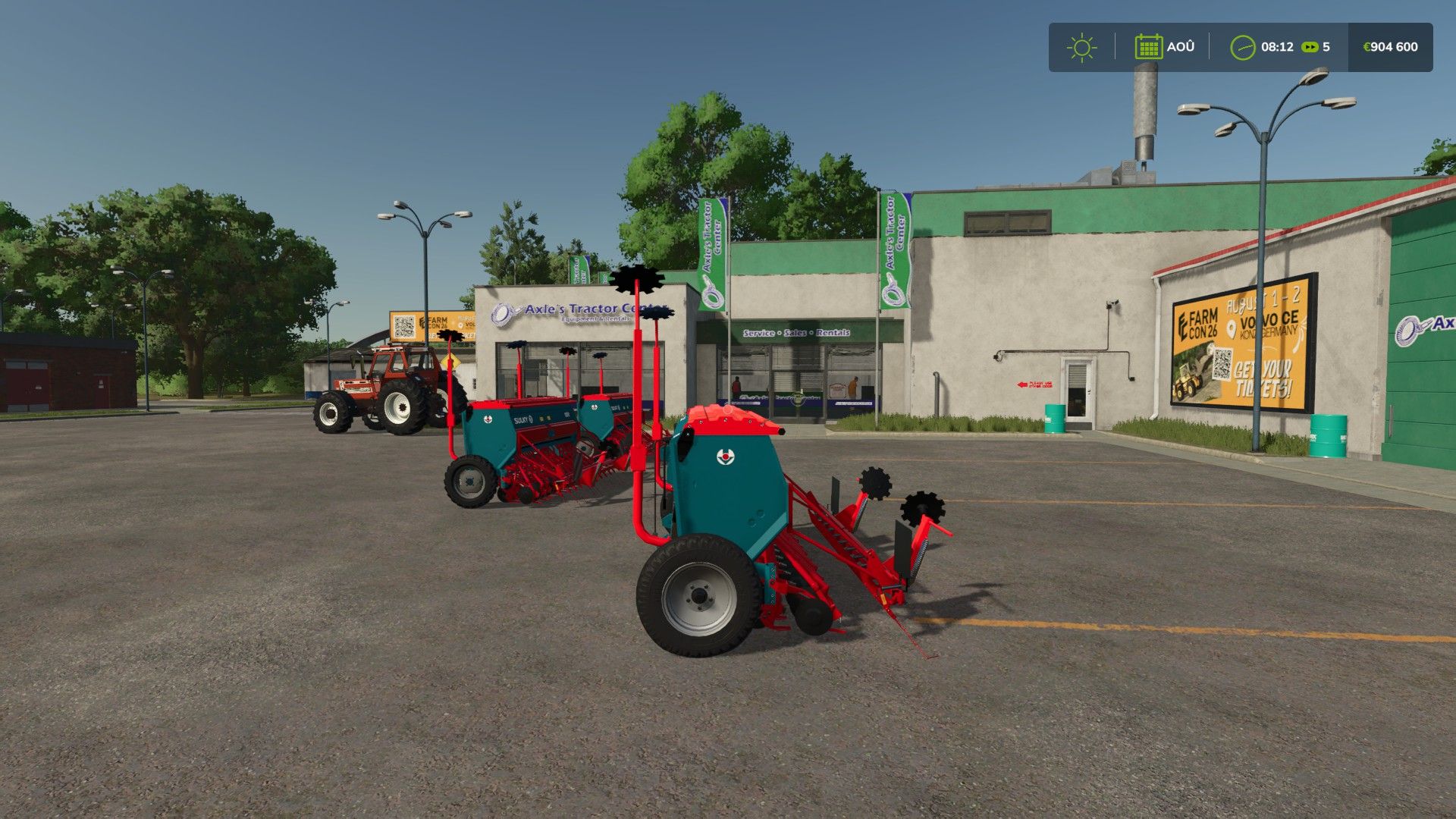
Sulky Master FS25
perfect seeder for your parties working width:3.0m capacity:600l switch to colors fs25 There was just the filling bug, which has been fixed.
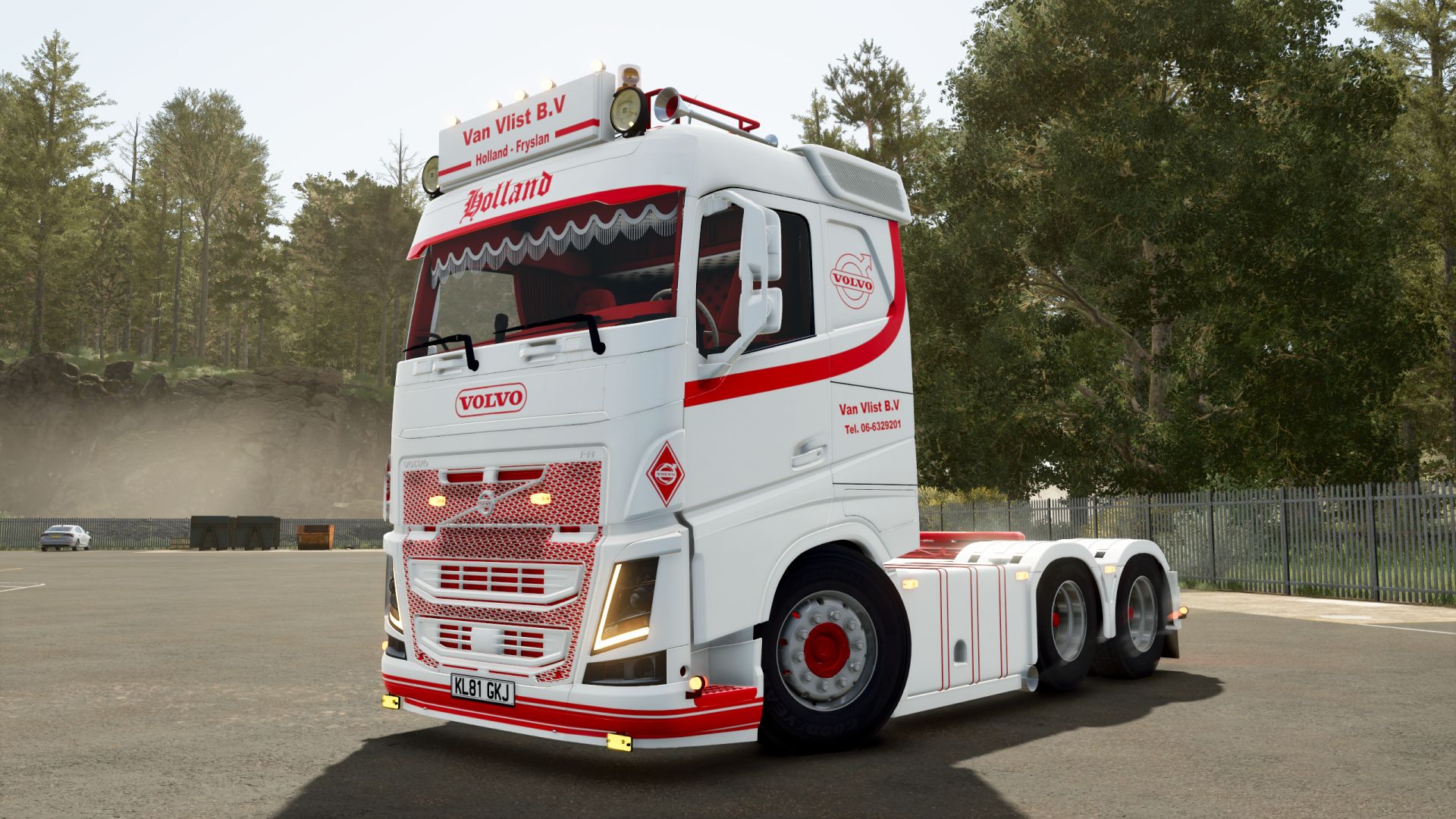
Volvo FH500 FS25
- Starting price 96.000$ - Power 500hp - Speed 90 km/h - Selectable Bullbar - Selectable Wind deflector - Connecting hoses have been added. - Lighting has been improved. - The engine, transmission, and differential have been improved; all-wheel drive has been removed. - Fixed license plate configuration. - Fixed turn signals. - Added wind deflector configuration. - Fixed attacher position. - Fixed warning about excessive part weight.
- 15 per page
- 30 per page
- 45 per page
- 60 per page
-
See more per page
Bigger pages, fewer clicks - and no ads anywhere.
Go Pro