1 / 9
New Temporal Anti Aliasing – No More Aliasing, Flickering
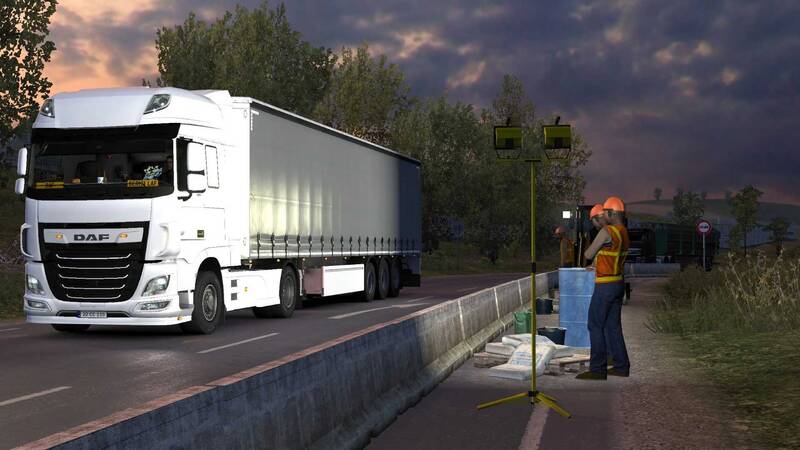
Changes v4 Released to solve low FPS/FPS drop issue TAA is a method used by modern games to solve aliasing issues. – Full implementation of TAA for ETS2/ATS – It has low performance impact compared to any other anti aliasing solution. – It is not an only postprocess TAA like you have in other apps which just blurs your screen. TAA (Temporal Anti Aliasing) implemented with a .dll file to replace default anti aliasing method with TAA. It is removing/recuding aliasing, flickering, shimmering with minimal performance impact. You can get rid of aliasing problems with only 100% resolution scale in game. You can use left gpu power for higher graphic settings or anything you want. Supported Versions: ETS2: 1.48.1.6 ATS: 1.48.2.6 Installation: 1. Go to Euro Truck Simulator 2/American Truck Simulator folder 2. Go to “bin\win_x64” folder 3. Copy & paste dxgi.dll file 4. Start game with DirectX 11 5. Disable any other anti aliasing (SMAA, MSAA, Nvidia Profile Inspector (NPI)) Settings: Press “HOME” key to open menu ingame Rate = TAA apply rate (9 default and recommended) Sharpness = Sharpen filter rate ***You can use this method for any other project uses dxgi.dll. Create a folder named “reshade” inside “bin\win_x64\” folder. Copy reshade files (dxgi.dll, ReShade.ini, ReShadePreset.ini, reshade-shaders) to “bin\win_x64\reshade\” folder. Put TAA dxgi.dll to “bin\win_x64\” folder. Now you can play the game with TAA and ReShade. ***When reshade is activated, you need to use “END” key for TAA instead of “HOME” key. Credits: snowymoon
Download Links
Report a problem
New Temporal Anti Aliasing – No More Aliasing, Flickering
Advertisement
Remove ads