1 / 4
Lighting Improvements Graphics Mod v2.0.35.5 (1.56.x) Mod
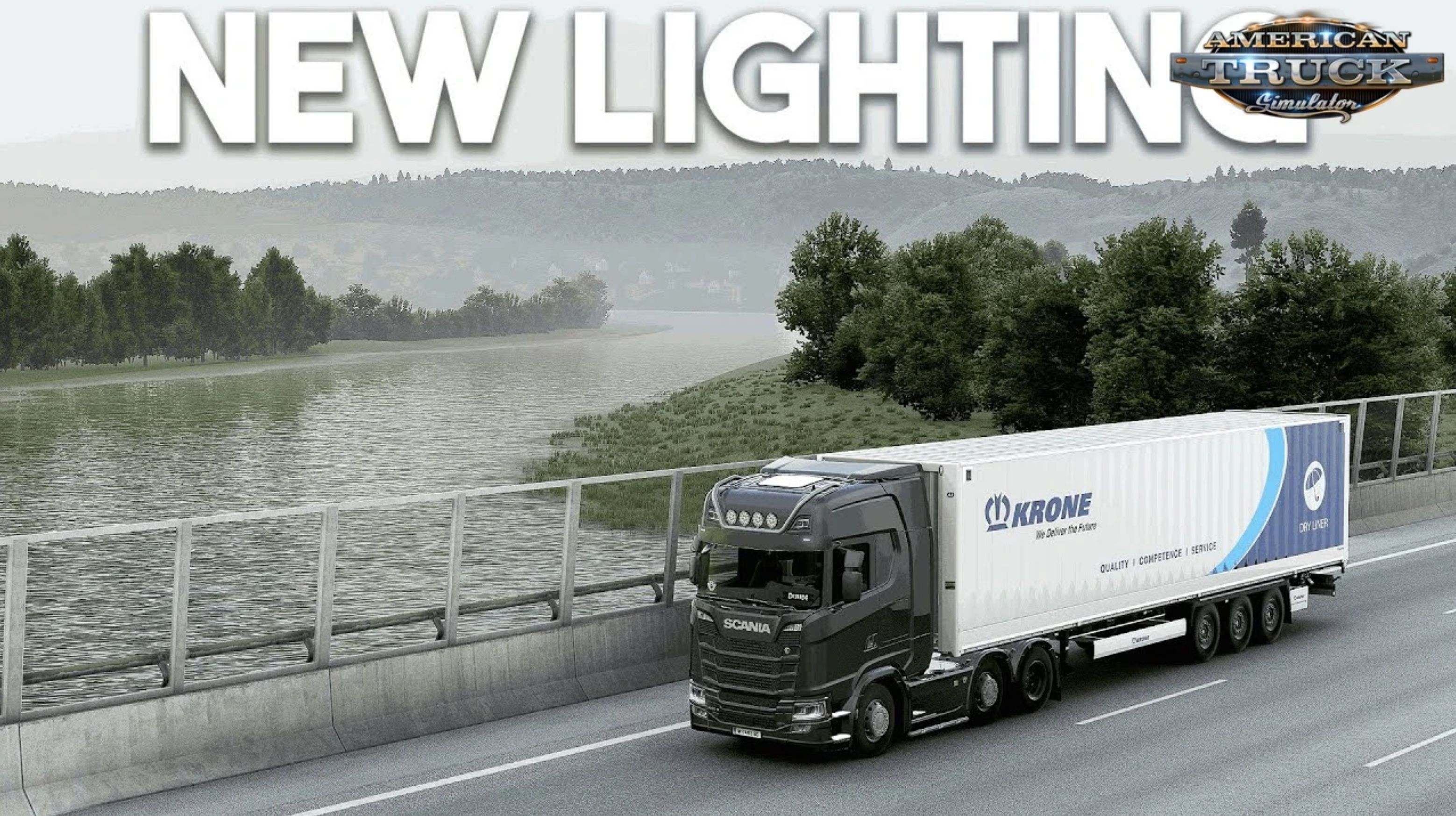
Lighting Improvements for ATS – is designed to enhance the visual experience of the game by improving its lighting system. Developed by contributors like snowymoon, this mod aims to address the limitations of the default lighting in ETS2, offering players a more dynamic and visually appealing experience. It focuses on refining how light interacts with the environment, including streetlights, headlights, and natural sunlight, without necessarily relying on extensive asset changes.
Features Lighting Improvements: ✅ Compatible with ATS and ETS2 🌃 Realistic streetlight brightness, color, and distribution for immersive night driving 🌡️ Optional light temperature adjustments (e.g., halogen warmth or LED coolness) 🚚 Upgraded truck headlights with improved range and clarity 🛣️ Enhanced visibility of roads and objects in low-light conditions ☀️ Refined sunlight rendering with natural shadows and intensity 🌇 Smoother transitions between day and night (dawn/dusk effects) 🕒 Potential dynamic lighting based on time of day ⚖️ Balanced light/shadow to prevent overexposure or harsh contrast 🧊 Custom improved rain/snow effects 🌌 Dynamic sky/weather integration (future updates planned) 🧪 Uses in-game weather and lighting data for realism 🖥️ Optimized for performance with minimal FPS impact 🌿 Forces highest vegetation quality for visual fidelity 💧 Realistic puddle placement using specular data (not random) 🧩 Compatible with all mods, VR, and multimonitor setups
How to Fix Crash Problem – 🔄 Reset your config.cfg (Documents → ETS2/ATS folder → delete config.cfg) – 🚫 Disable/remove plugins – ❌ Turn off RTX features in NVIDIA settings
Features – ✨ Temporal Anti-Aliasing (TAA) – 🧼 DLAA / DLSS 3.7 support – 🎥 Motion Blur toggle
📦 Installation – Go to ETS2/ATS folder – Go to “binwin_x64” folder – Copy & paste “dxgi.dll” file and “nvngx_dlss.dll” (for DLSS) – Copy & paste “snowymoon_lighting” folder – Start game with DirectX 11 – Press “END” or “CTRL+P” key to open menu ingame
Using with ReShade – Create a folder named “reshade” in “binwin_x64” folder – Put all ReShade (or any other mod/plugin) files to “binwin_x64reshade” folder or select “binwin_x64reshade” folder from ReShade installer
Features Lighting Improvements: ✅ Compatible with ATS and ETS2 🌃 Realistic streetlight brightness, color, and distribution for immersive night driving 🌡️ Optional light temperature adjustments (e.g., halogen warmth or LED coolness) 🚚 Upgraded truck headlights with improved range and clarity 🛣️ Enhanced visibility of roads and objects in low-light conditions ☀️ Refined sunlight rendering with natural shadows and intensity 🌇 Smoother transitions between day and night (dawn/dusk effects) 🕒 Potential dynamic lighting based on time of day ⚖️ Balanced light/shadow to prevent overexposure or harsh contrast 🧊 Custom improved rain/snow effects 🌌 Dynamic sky/weather integration (future updates planned) 🧪 Uses in-game weather and lighting data for realism 🖥️ Optimized for performance with minimal FPS impact 🌿 Forces highest vegetation quality for visual fidelity 💧 Realistic puddle placement using specular data (not random) 🧩 Compatible with all mods, VR, and multimonitor setups
How to Fix Crash Problem – 🔄 Reset your config.cfg (Documents → ETS2/ATS folder → delete config.cfg) – 🚫 Disable/remove plugins – ❌ Turn off RTX features in NVIDIA settings
Features – ✨ Temporal Anti-Aliasing (TAA) – 🧼 DLAA / DLSS 3.7 support – 🎥 Motion Blur toggle
📦 Installation – Go to ETS2/ATS folder – Go to “binwin_x64” folder – Copy & paste “dxgi.dll” file and “nvngx_dlss.dll” (for DLSS) – Copy & paste “snowymoon_lighting” folder – Start game with DirectX 11 – Press “END” or “CTRL+P” key to open menu ingame
Using with ReShade – Create a folder named “reshade” in “binwin_x64” folder – Put all ReShade (or any other mod/plugin) files to “binwin_x64reshade” folder or select “binwin_x64reshade” folder from ReShade installer
Visit Original Post
Also posted on
Download Links
Report a problem
Lighting Improvements Graphics Mod v2.0.35.5 (1.56.x) Mod
Advertisement
Remove ads